
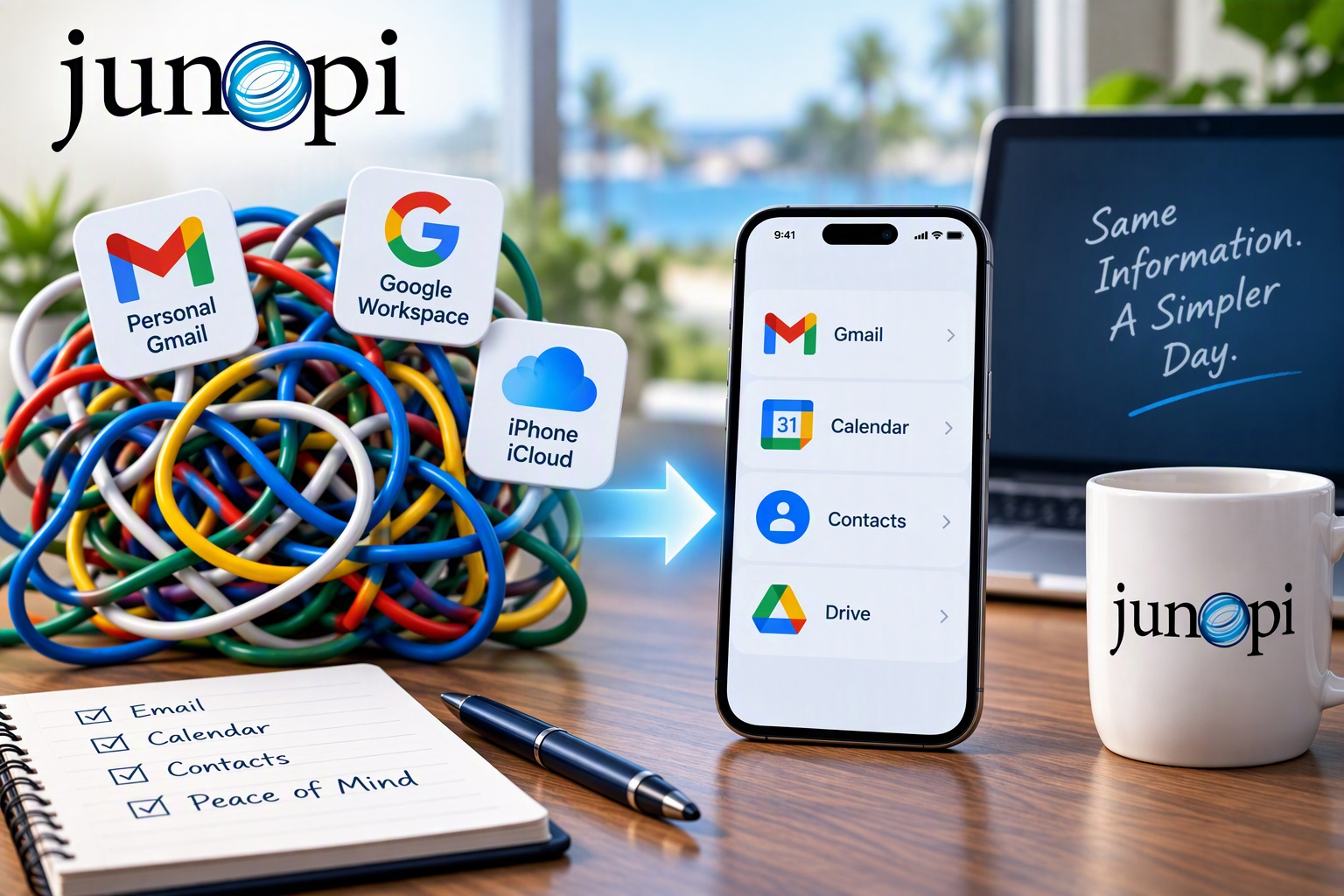
Setting up Google Workspace for a new business seems straightforward enough. You create your business email address, add it to your computer and phone, and start working. But if you already have a personal Gmail account, an iPhone, multiple calendars, and years of contacts, things can get confusing surprisingly quickly.
You might start seeing personal contacts appearing in your business account. Business appointments show up on your personal calendar. Calendar events appear twice. Invitations get sent from the wrong email address. Contacts appear on your phone but not on your computer. Changes made on one device don’t appear on another.
The good news is that these problems are usually fixable. The key is to stop treating them as individual sync problems and first determine which account is supposed to own each piece of information.
Identify all of your accounts
Before changing anything, make a list of every account connected to your devices. You may have a personal Gmail, a business Google Workspace account, and an Apple Account. You might also discover older Gmail, Microsoft, or Yahoo accounts still connected to your iPhone.
On an iPhone, review the accounts associated with Mail, Contacts, and Calendar in Settings. Depending on your iOS version, Apple may place these under Apps for Mail, Calendar, and Contacts. Don’t remove anything yet.
Decide where things should live
This is the most important step. We generally recommend establishing a clear home for each type of business information. For example: business email and business contacts in Google Workspace, personal email and personal contacts in your personal Gmail or iCloud. The exact arrangement isn’t as important as being deliberate and consistent.
Your iPhone can display information from several accounts at once. That doesn’t mean the information actually lives in the same place.
Check the default accounts on your iPhone
This is where many problems begin. An iPhone may have three different places available to store a new contact: iCloud, personal Gmail, and Google Workspace. If your default account is iCloud, a new business contact created on your phone may never appear in Google Workspace.
Before creating new information, verify which account is the default for new contacts, new calendar events, and email composition. Color coding your personal and business calendars differently can make mistakes easier to spot.
Check Google’s side of the configuration
Log directly into each Google account through a web browser. For the personal account, check Gmail, Google Calendar, and Google Contacts. Then do the same with the business Google Workspace account.
This helps answer a critical question: is the information actually wrong at Google, or is the iPhone simply displaying information from multiple accounts together? Those are very different problems.
Look for duplicate calendars and contacts
You might discover that the same contact exists in your personal Google Contacts, your Google Workspace Contacts, and iCloud. They may look like one contact on your iPhone even though there are actually multiple records. Before deleting duplicates, determine where each copy actually resides. Deleting what appears to be a duplicate on your iPhone could delete the cloud-based copy as well.
Don’t start fixing things by deleting accounts
One of the easiest ways to make the situation worse is to start removing accounts from the iPhone until the problem disappears. Before removing an account, understand what information belongs to that account, whether everything is synchronized to the cloud, and whether any contacts or calendars are stored only locally.
Keep personal and business data separate going forward
Once everything is cleaned up, maintain a simple rule: business belongs in the business account, personal belongs in the personal account. That becomes increasingly important as the business grows. A Google Workspace account is controlled by the business, while a personal Gmail account belongs to the individual. Keeping business information in the business environment makes administration, security, backup, and collaboration much easier.
When it’s time to get some help
If you’ve reached the point where you’re no longer sure which account owns which contacts, calendars, and email, resist the temptation to keep experimenting. A technician can work through the environment methodically: inventory all accounts, determine where information currently resides, identify duplicates, back up important data, reconfigure devices, and test synchronization. The goal shouldn’t just be to get everything working today. The goal is to leave you with a configuration that makes sense tomorrow.
Junopi works with businesses throughout Southwest Florida. Many Google Workspace and iPhone synchronization problems can be diagnosed and corrected remotely. If you’d like help sorting out your accounts, reach out and we’ll talk through it.